Systematic Hardware Debugging on Linux
The Problem
This post is about the systematic approach I use to debug hardware issues on Linux.
The scenario:
My webcam stopped working. Not just in one app—everywhere. Firefox, Chromium, Zoom—all failed. No error messages, just a black screen or “camera not available.”
The Method
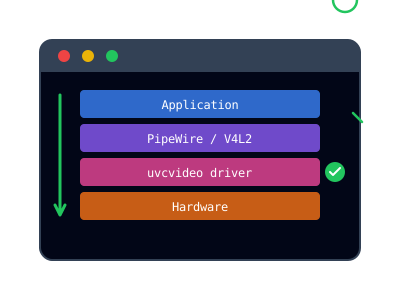
When debugging hardware,I move down the stack:
- Reproduce the failure - Confirm it’s real and consistent
- Test breadth - Does it fail everywhere or just one place?
- Move down the stack - App → framework → driver → hardware
- Check logs at each layer -
journalctl,dmesg, app-specific logs - Isolate with direct tools -
ffmpegfor video,aplayfor audio,evtestfor input - Search with specifics - Use device IDs, driver names, error messages
Layer 1: Application
Test multiple applications:
- Firefox: black screen
- Chromium: “camera not available”
- Zoom: no video
Verdict: Not app-specific. The problem is below the application layer.
Layer 2: Media Framework
On modern Linux, apps usually access cameras through PipeWire. Check if PipeWire sees the device:
wpctl statusCamera appeared in the list. Let’s bypass PipeWire and test V4L2 directly:
ffmpeg -f v4l2 -i /dev/video0 -frames:v 1 /tmp/test.jpgioctl(VIDIOC_DQBUF): No such deviceVerdict: Not PipeWire. The problem is in the kernel driver or hardware.
Layer 3: Driver
The uvcvideo driver handles most USB webcams. Check the kernel logs:
sudo dmesg | grep -i usb | tail -20usb 1-3: USB disconnect, device number 89
usb 1-3: new high-speed USB device number 90 using xhci_hcd
usb 1-3: Found UVC 1.10 device Integrated Camera (04f2:b725)
usb 1-3: USB disconnect, device number 90
...The camera was connecting, disconnecting, reconnecting in a loop—triggered by capture attempts.
Verdict: The driver (or hardware) is failing when streaming starts.
Layer 4: Driver Quirks
The uvcvideo driver has a quirks parameter for misbehaving cameras:
# Try quirk for hardware noise
sudo modprobe -r uvcvideo
sudo modprobe uvcvideo quirks=2
Still failed.
# Try quirk for bandwidth issues
sudo modprobe uvcvideo quirks=0x80
ffmpeg -f v4l2 -i /dev/video0 -frames:v 1 /tmp/test.jpg && echo "Success!"Success.
Verdict: Driver quirk needed. The camera has a firmware issue that the driver can work around.
Layer 5: Hardware
If driver quirks hadn’t worked, the next step would be hardware:
- Loose internal cable - Laptop webcams connect via ribbon cable
- Failing USB port/controller - Test with an external USB camera
- Dying camera module - Hardware failure, no software fix
The disconnect-on-access pattern can indicate either a firmware/driver issue (fixable) or hardware failure (not fixable).
Making It Permanent
The fix won’t survive a reboot. Make it permanent:
echo "options uvcvideo quirks=0x80" | sudo tee /etc/modprobe.d/uvcvideo.confTools Reference
| Tool | Purpose |
|---|---|
wpctl status |
Check PipeWire devices |
v4l2-ctl --list-devices |
List V4L2 cameras |
ffmpeg -f v4l2 |
Test capture directly |
dmesg |
Kernel logs |
lsusb |
List USB devices |
modprobe -r / modprobe |
Reload drivers with options |
Why This Works
“Camera doesn’t work” could mean permission denied, wrong device, driver not loaded, firmware crash, loose cable, or hardware failure.
The systematic approach turns vague into specific. Each layer eliminated narrows the search space. By the time I reached “driver quirks,” I knew:
- Not apps
- Not PipeWire
- Not permissions
- Hardware was detected
- Streaming specifically triggered a disconnect
That’s enough to search effectively: “uvcvideo usb disconnect streaming” finds the answer faster than “linux camera not working.”
The Root Cause
My Lenovo IdeaPad 1 has a Chicony webcam with firmware that requests excessive USB bandwidth. A kernel update changed bandwidth negotiation in uvcvideo. The camera’s aggressive requests now exceed what the driver allows, triggering a USB reset.
quirks=0x80 forces conservative bandwidth negotiation.
| Detail | Value |
|---|---|
| Laptop | Lenovo IdeaPad 1 14ALC7 |
| Camera | Chicony 04f2:b725 |
| Driver | uvcvideo |
| Kernel | 6.17.9 |
| Fix | quirks=0x80 |